IT Guide – Accessing your IWA account
Why do I need to use my IWA (@waterways.org.uk or @WRG.ORG.UK) account?
Using your IWA account ensures that all volunteer activities are properly managed under the charity’s framework. Moreover, it enhances security by centralising access through a protected system with next generation security controls, reducing the risk of unauthorised access or data breaches.
Additionally, using your IWA account helps ensures compliance with data protection regulations, safeguarding personal information, and ensuring that all data is handled in accordance with legal standards. This helps protect both the volunteers and IWA from potential legal issues related to data privacy.
Finally, volunteer email access is provided to IWA for free by Microsoft on the basis the accounts are used as much as possible. If some volunteers are using personal accounts instead of designated @waterways.org.uk accounts, then this substantial cost saving for the Association may be lost for everyone.
How do I login to my IWA account via the web?
Simply open your preferred internet browser (For example: Google Chrome, Firefox or Safari) and visit https://portal.office.com/ and enter your IWA email address in the form firstname.lastname@waterways.org.uk, substituting your name (for example volunteer Sarah Smith would use [email protected]).
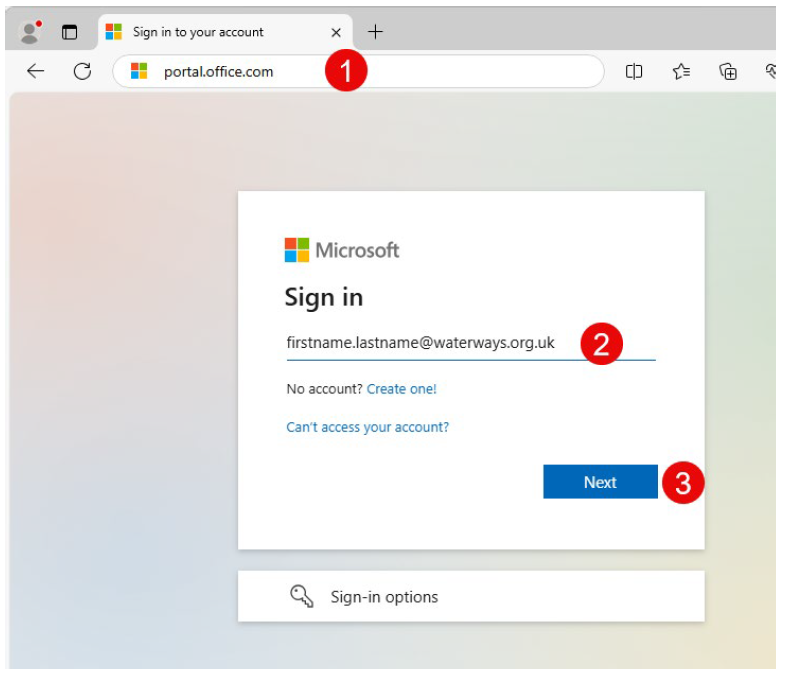
Note: if this is the first time you’ve logged in, you’ll be asked to add your contact information. You may be asked for additional security verification (such as code a text message or app approval) at login.
Finally, choose Outlook to access your emails:

How do I login to my account via Microsoft Outlook?
If you’re using Microsoft Outlook, simply choose File -> Info -> Add Account and enter your username, password and additional verification. This should keep you logged in without needing to sign-in again.
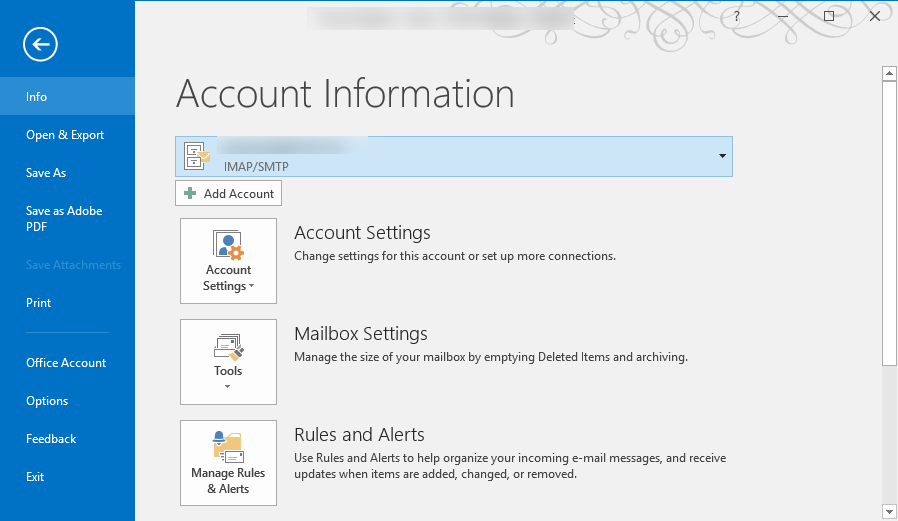
You can also login from your smartphone or tablet by using the Microsoft Outlook app, available from the Google Play and Apple App stores.
What should I do if I’ve forgotten my password?
At the login screen, choose the Can’t access your account? or Forgotten my password links.
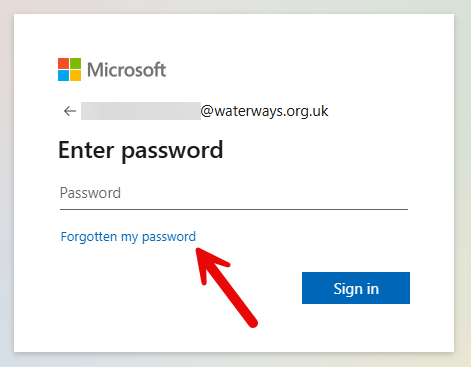
The password reset page will provide instructions to reset your password using the contact details you provided when you first setup your account.
Where do I go if I need further help?
If you need any further help accessing your account, please call the national office on 01494 783453, or email [email protected] or [email protected]
What is MFA?
Multi-factor authentication (MFA) is an important layer of security protection designed to prevent unauthorised access to your account. When you sign into Microsoft 365, MFA combines your password with an easy additional security step, for example, accepting a notification in the Microsoft Authenticator app or a code from a text message to help ensure your account stays secure.
If you have not already registered, getting started is easy and only takes a few minutes.
1 – Download the Microsoft Authenticator app
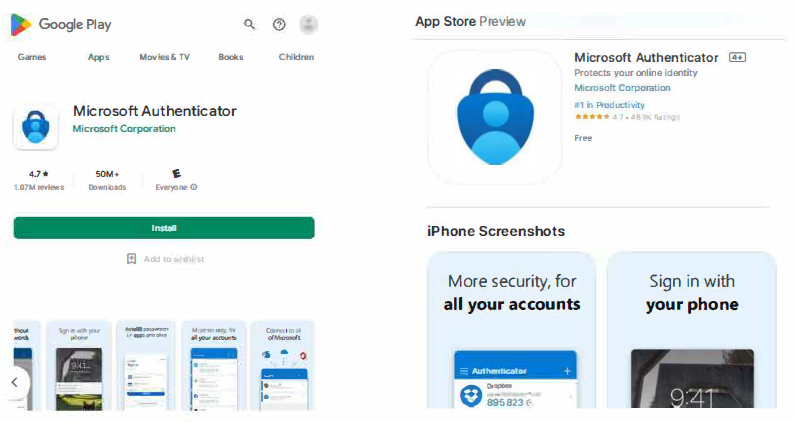
If not already installed, start by visiting the Google play store (Android) or Apple app store (iOS/iPadOS) on your phone to download the free Microsoft Authenticator app.
2 – Login to Microsoft 365
Once MFA has been turned on for your account, you’ll see the screen below:
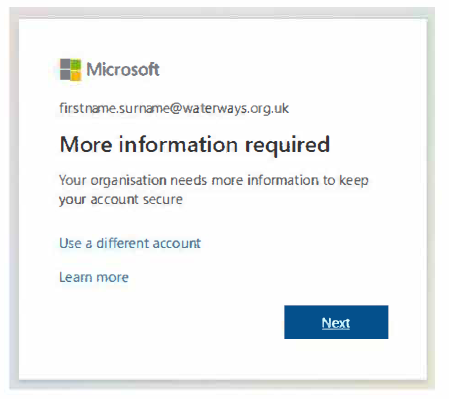
Press the ‘next’ button at the next two screens:
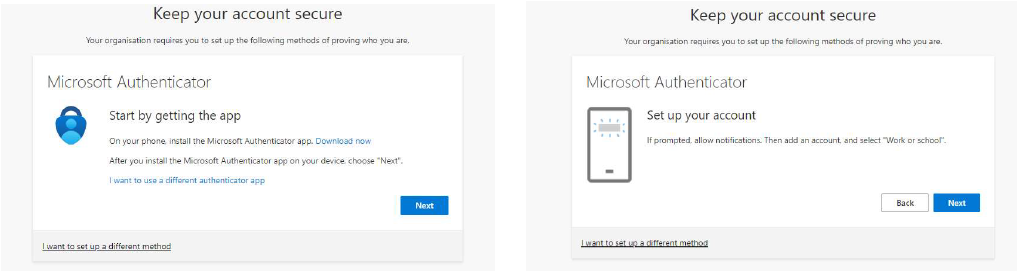
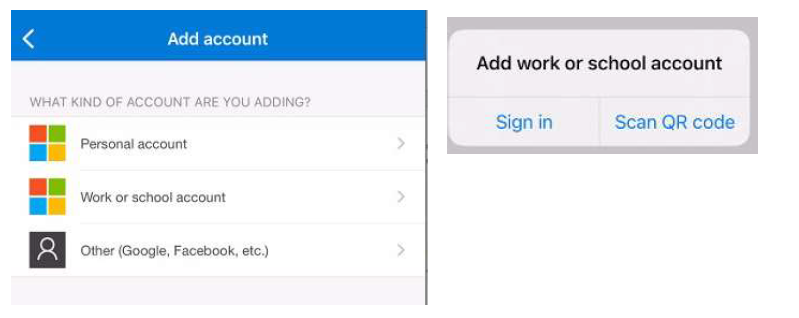
Next, open the Microsoft Authenticator app and choose Work or School Account, then select Scan QR Code.
Use your phone’s camera to scan the QR code displayed on the screen and press ‘Next’. If prompted allow notifications on your phone.
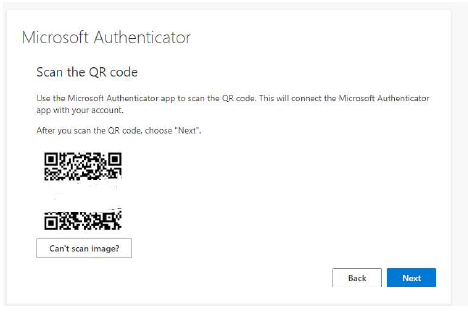
Press the Next button, you will receive a notification to your phone allowing you to approve the sign-in. You will receive a new sign-in request to your phone when you sign-in to a new app or device.
If you receive sign-in requests and it’s not you, please deny the request and contact us using the contact details below.
Use a text message instead of the Microsoft Authenticator app
If using the Microsoft Authenticator app is not possible, you can get a one-time code sent a phone via a text message.
On the MFA setup page, choose I want to setup a different method and select the Phone option (highlighted below):
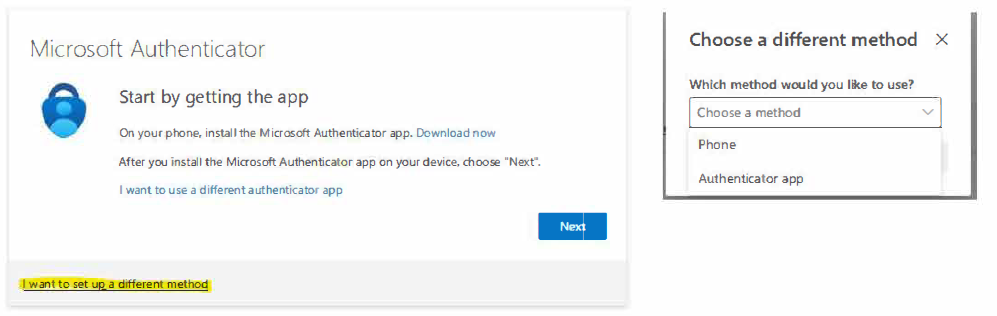
You will then have the option to enter a phone number. Please ensure the country is set to United Kingdom (+44).
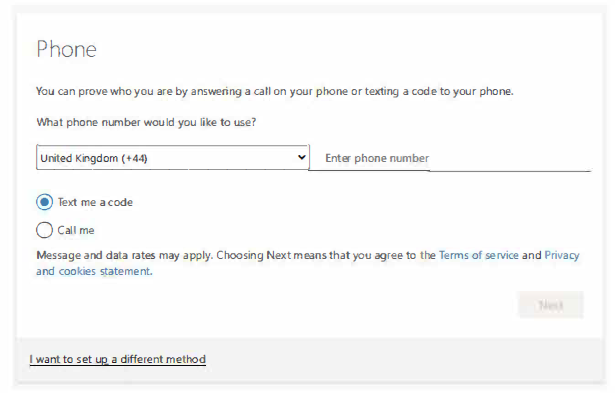
Once done, please press next and you’ll get a test text message to your phone.
Need help?
Email: [email protected] or [email protected] or phone 01494 783453
Last Updated: December 2025